Friday, April 8, 2011
Technology Blog Revived!
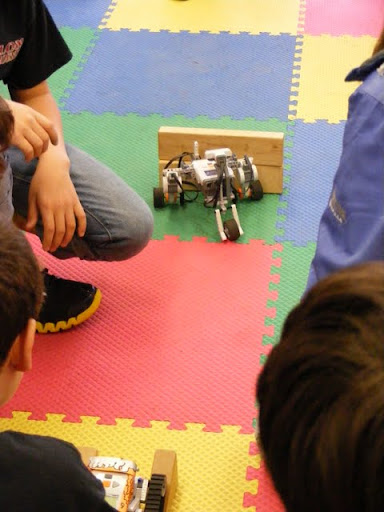
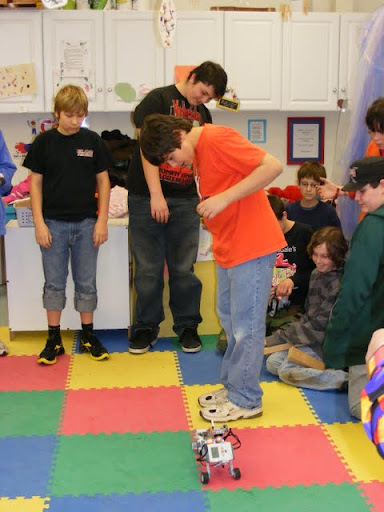
My apologies for taking so long between posts. I've been absorbed in creating robots with our middle schoolers! Here are some pictures from the demonstration the students did for the Early Learner classes:


Thursday, December 9, 2010
Tips for Gamers and Their Parents: ESRB Ratings
It's that time of year - the time when children make gift wish-lists for the holiday season. Often included in these lists are video and computer games. Here's some information regarding the ESRB Rating system.
It is highly recommended that parents pay special attention to the Entertainment Software Rating Board (ESRB) ratings. These ratings can help parents determine the suitability of games for their children, even if the parents themselves have not played the game prior.
Remember that these ratings are designed to help buyers decide which games are appropriate; however, the final decision as to whether a game is okay or not rests solely with a parent or guardian. I recommend checking many sources of information - ESRB ratings, online reviews, and product websites - to determine any game's suitability.
These ratings are as follows:
eC: Early Childhood, appropriate for ages 3+
E: Good for ages 6+
E 10+: Good for anyone 10 years and up
T: Good for teenagers or older (13+)
M: Mature game, good only for adults 17+
Ao: Adults only game, usually includes some kind of sexuality or violence of an exceptional nature.
All games must be rated by the Entertainment Software Rating Board to be on the market. If a game is offered for sale with the label "Rating Pending", it is from a questionable source and should not be purchased. Games with ratings of E 10+ or higher will usually include Content Descriptors, which provide some indications as to why that rating was given. Learn more at: http://www.blogger.com/post-create.g?blogID=735291849989549240
Wednesday, December 1, 2010
Class Notes: Lower Elementary
We will continue our adventures with Faux Paw throughout the month of December. We will learn how to prevent cyber-bullying, how we can all be good digital citizens, and why we should never download files from unknown sources.
Thursday, November 18, 2010
Class Notes
This week Middle Elementary students went on a virtual field trip to Plimoth Plantation, in Plymouth , Massachusetts . An interviewer from Scholastic spoke to the curator of the Plimoth Plantation living-museum, a current member of the Wampanoag tribe, a Wampanoag warrior from 1620, and two English settlers from Plimoth 1620. We learned interesting facts about what day-to-day life was like for the settlers and the Wampanoag tribe, the famous positive relationship the two cultures shared, and the bountiful harvest of 1621 that led to the three-day thanksgiving celebration.
Favorite facts the students learned included:
- In the 1600s, there were no spelling rules.
- When the Pilgrims arrived, they had to live on the ship for many months while their homes were being built.
- The Wampanoag people and the Pilgrim settlers had a hard time communicating, so they were scared of each other. Instead of having a war, they chose to have a treaty.
- The Native American who helped the Pilgrims was named "Tisquantum".
- The Pilgrim children had to sleep on mattresses on the floor!
- Children from both the Wampanoag and Pilgrim settlements had some toys a lot like ours - dolls, marbles, board games, and toy versions of grown-up tools.
- The first Thanksgiving lasted for 3 whole days! There was a huge feast and sporting competitions. There were 50 Pilgrims and about 90 Wampanoag in attendance.
Wednesday, November 10, 2010
Welcome to Gaggle!
This week, students from Kim's, Betsy's, Katrina's, Emilie's, and Linda's classes will begin using their Gaggle accounts! These accounts provide email, chatrooms, a social wall, access to online videos, blogging, and other great online communications tools - all in the safety of our Community School environment. Look forward to a lot of Gaggle fun ahead!
Thursday, November 4, 2010
How to...Do a Search using Google!
Welcome to my first installment of "How to..." I hope this will be an informative blog series for all student, parent, and staff readers! I plan to post a new "How to..." bi-weekly.
This week's "How to..." describes the process for using the popular search engine, Google. Words in bold are important technology terms to know. Oh, and don't forget to check out the Special Pro Tips at the bottom!
How to do a search using Google:
This week's "How to..." describes the process for using the popular search engine, Google. Words in bold are important technology terms to know. Oh, and don't forget to check out the Special Pro Tips at the bottom!
How to do a search using Google:
- Open a web browser (Internet Explorer, Mozilla Firefox, Google Chrome, etc.)
- Type the following URL: www.google.com in the address bar
- In the search box (the large blank in the middle of the screen), type the search terms, or words or phrases you are seeking information about. With the new "Google Instant" feature, results will start to pop up as you type each letter!
- Review the links returned to find the one that will best suit your needs. When you find one that looks promising, click on it! Read the page provided to see if it has the information you need. Remember to review links for indications that they are a credible source: things like being .gov or .edu addresses, or being part of well-known sources such as newsgroups or publications (CNN, Discovery Channel, National Geographic, etc.)
- If needed, make any changes to your search terms, and try again (starting at step 3)!
Special Pro Tips!
- If you are looking for a specific type of results, such as Images, Videos, Books, Places, etc., make sure you click the corresponding link on the left-hand side of the results page!
- If you aren't getting the results you need, try putting in synonyms for your search terms. You can combine the terms with AND, or separate the terms with OR. OR searches will look for results with one term or the other. AND searches will look for results with both terms.
- If you are looking for an exact phrase or word, try putting it in "quotation marks"
- If there are words you do NOT want included in search results, put a minus sign (-) in front of them. Such as: Community School -New York State
- Google can solve math problems for you! Really! Just type your math problem in the search box. Google can find percents [example: 15% of $45.67], square roots [example: sqrt (81)], and exponentials [example: 20^2], in addition to basic four-function problems [ +, -, *, / ].
- If you are getting results that are inappropriate or that make you uncomfortable, try adjusting Safe Search in the Settings menu. Google defaults to "Moderate Safe Search", which will filter explicit images. "Strict Filtering" is the stronger option, and it filters explicit images and text.
Wednesday, November 3, 2010
Fall Festival Photo Project
In the weeks following Fall Festival, Middle School students have been working on multimedia presentations. Here is a video a Seminar student created using Photo Story, using pictures taken by students at Fall Festival.
Subscribe to:
Posts (Atom)